

Start here
What a Home Network Actually Is
Next
Bandwidth, Speed, and Why the Numbers Don't Tell the Whole Story
Then
Latency and Why It Matters Beyond Gaming
Going deeper
Wi-Fi Signals, Interference, and Dead Zones
Apply it
How Many Devices Are Too Many?
Take action
Simple Steps to Improve Your Network Today
What a Home Network Actually Is
A home network is simply the collection of hardware and connections that lets your devices share a single internet connection. At minimum, it includes a modem - the device that communicates with your internet service provider (ISP) - and a router, which distributes that connection to your phones, TVs, computers, and streaming devices.
Many ISPs supply a single box that does both jobs. Whether yours is one unit or two, the principle is the same: data travels from the internet, through your modem, through your router, and finally to whatever device requested it.
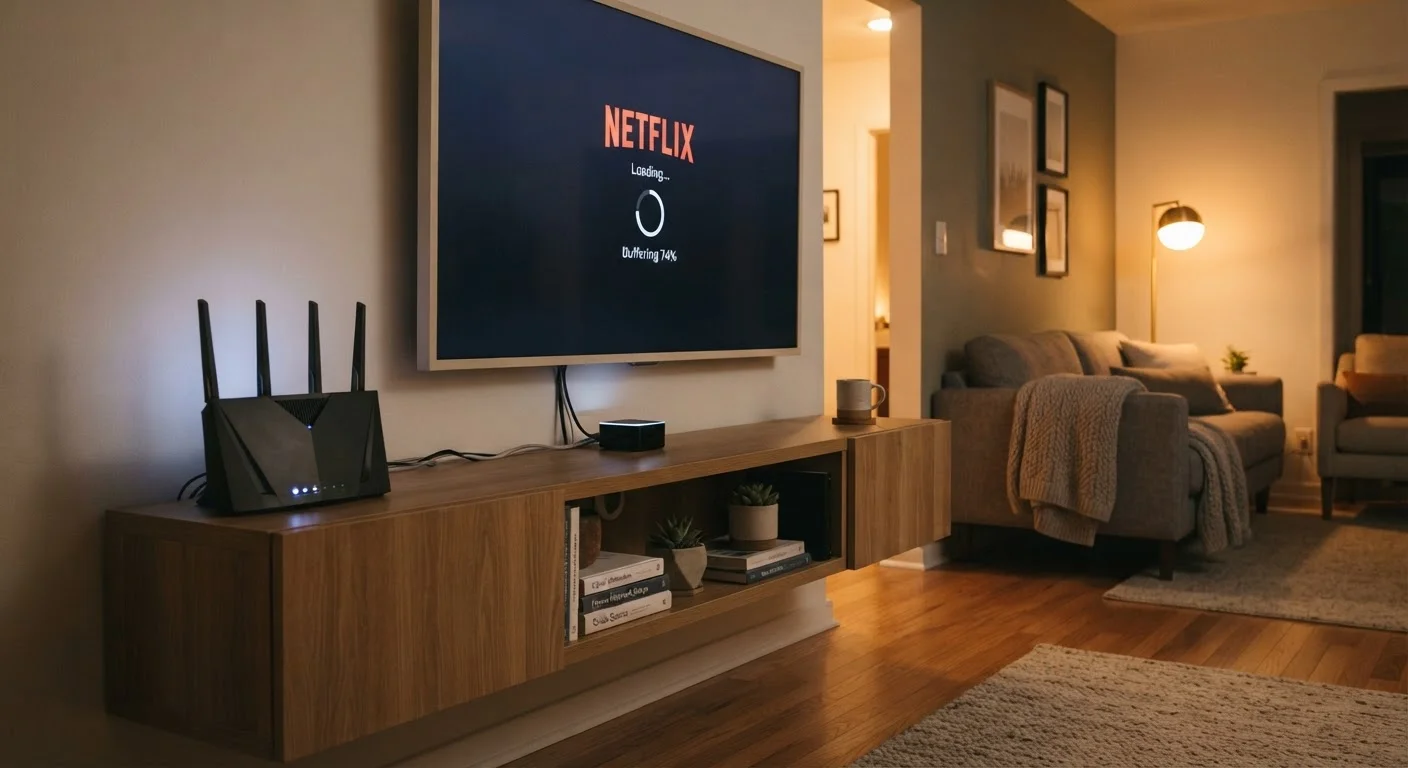
Understanding this chain matters because a problem anywhere in it affects your stream. A sluggish ISP plan, an aging router, or even a poorly placed device can all be the real culprit when your show starts buffering.
Modem
A device that connects your home to your internet service provider's network. It translates signals from your ISP into data your home devices can use.
Router
A device that distributes an internet connection to multiple devices in your home, either wirelessly (Wi-Fi) or through physical cables (Ethernet).
Bandwidth
The maximum amount of data that can move through your connection at one time. Higher bandwidth allows more data - and more devices - to operate simultaneously.
Latency
The time it takes for data to travel from your device to a server and back, measured in milliseconds. Lower is better for smooth streaming.
Jitter
Inconsistency in latency over time. When delay fluctuates unpredictably, a streaming player can't buffer reliably, causing stutters and stalls.
Mbps
Megabits per second - the standard unit for measuring internet connection speed. More Mbps means more data can transfer each second.
Bandwidth, Speed, and Why the Numbers Don't Tell the Whole Story
Bandwidth is the maximum amount of data your connection can carry at once - think of it as the width of a pipe. Your ISP's advertised speed (measured in Mbps) is the theoretical maximum of that pipe under ideal conditions.
In practice, that speed is shared across every device simultaneously using the network. A household with four people each streaming video in different rooms is dividing that bandwidth four ways, before accounting for background app updates, smart home devices, or anyone on a video call.
Major streaming services publish their own speed recommendations - generally around 5 Mbps for HD and 15-25 Mbps for 4K per stream - but those figures assume the stream is the only thing happening. Real households need headroom beyond those minimums. For a plain breakdown of streaming-specific terms like bitrate and resolution, this streaming glossary is worth bookmarking.
Latency and Why It Matters Beyond Gaming
Latency is the delay between a request leaving your device and a response arriving - measured in milliseconds (ms). Most people associate latency with online gaming lag, but it also affects streaming.
When a streaming service sends video in chunks, high latency means each new chunk takes longer to arrive. If your connection's delay is inconsistent - a condition called jitter - the player can't buffer smoothly, resulting in stalls even when a speed test shows a healthy number.
A typical broadband connection has latency under 30ms. If yours consistently runs above 100ms, that alone can contribute to choppy playback. Understanding what really causes buffering helps you distinguish a latency problem from a pure speed problem.
Wi-Fi Signals, Interference, and Dead Zones
Wi-Fi broadcasts on radio frequencies - most commonly 2.4 GHz and 5 GHz. The 2.4 GHz band travels farther through walls but carries less total capacity and is more prone to interference from neighboring networks and household appliances like microwaves. The 5 GHz band is faster and less congested but doesn't penetrate obstacles as well.
Dead zones - spots in your home where the signal barely reaches - are usually caused by distance from the router, thick walls, floors, or physical obstructions. They can also occur when too many nearby networks compete on the same channel.
For a room-by-room streaming setup, your router's physical placement makes a significant difference. A central, elevated location beats a closet corner every time. If your home's layout makes a single router impractical, mesh Wi-Fi systems offer an alternative worth understanding.
Try Changing Your Wi-Fi Channel
Most routers let you manually select which Wi-Fi channel they broadcast on, or set it to 'auto.' If your neighborhood has many networks competing on the same channel, switching can meaningfully reduce interference. Many router admin pages are accessible by typing 192.168.1.1 into a browser - check your router's label for the exact address and login details.
How Many Devices Are Too Many?
Modern households often have more connected devices than they realize: smart TVs, streaming sticks, game consoles, phones, tablets, laptops, smart speakers, thermostats, doorbells, and security cameras can all be drawing on the same connection simultaneously.
Not all of these demand equal bandwidth. A smart thermostat checking in with a server uses negligible data. A security camera streaming live footage does not. The practical challenge is that your router also has to manage the number of simultaneous connections - a job that strains older or entry-level hardware even when total bandwidth isn't maxed out.
If you're setting up a new streaming device for the first time, this setup guide walks through connecting it to your network without unnecessary complexity.
Simple Steps to Improve Your Network Today
Before spending money on an upgrade, a few free adjustments are worth trying:
- Relocate your router to a central, open area - away from walls, floors, and appliances.
- Restart your router and modem periodically. Memory and connection tables can degrade over time without a reset.
- Switch Wi-Fi bands on devices near the router to 5 GHz to reduce congestion on the 2.4 GHz band.
- Check for firmware updates on your router - manufacturers release patches that can improve stability and performance.
- Use a wired connection for your primary TV or streaming device when possible. As detailed in our guide on when Ethernet beats Wi-Fi, a cable removes signal variability entirely.
- Limit background activity during streaming - pause large downloads or cloud backups happening on other devices.
These steps resolve a surprising share of common streaming complaints without any hardware investment. If problems persist after working through them, you'll at least have a clearer picture of whether the issue lies in your equipment, your ISP plan, or something specific to one streaming service.
Speed Tests Give a Snapshot, Not the Full Picture
Running a speed test at one moment of the day - especially when few devices are active - can make your connection look healthier than it is during peak hours. For a more accurate read, run tests at different times, including evenings when household usage is highest. Many ISPs also offer their own diagnostic tools that can flag issues on their end of the connection.
Frequently Asked Questions
General guidance from major streaming services suggests around 5 Mbps for HD and 15-25 Mbps for 4K per stream. Keep in mind that speed is shared across all devices actively using the connection at the same time, so households with multiple simultaneous users need proportionally more.
Speed tests measure a single point-in-time connection, not sustained throughput under load. Buffering can be caused by high latency, Wi-Fi interference, router congestion, or the streaming service's own servers - not just your download speed. See our deeper look at <a href="/tech-gadgets/smart-home-streaming/why-your-streaming-video-keeps-buffering-and-whats-actually-causing-it">what actually causes buffering</a>.
A modem connects your home to your internet service provider's network. A router takes that connection and distributes it to all the devices in your home, either through Wi-Fi or wired cables. Many ISPs provide a combined modem-router unit, but they are two distinct functions.
Not always. Wi-Fi is convenient, but a wired Ethernet connection is more stable and consistent, especially for 4K or live streaming. For situations where that matters, see our guide on <a href="/tech-gadgets/smart-home-streaming/wi-fi-vs-ethernet-for-streaming-when-a-cable-still-beats-wireless">Wi-Fi vs. Ethernet for streaming</a>.
Repositioning your router to a central, elevated location helps. For larger homes, a mesh Wi-Fi system can extend coverage more reliably than a single router. Learn more about the trade-offs in our <a href="/tech-gadgets/smart-home-streaming/mesh-wi-fi-vs-traditional-routers-which-setup-fits-your-home">mesh vs. traditional router comparison</a>.
Yes. Every device actively using the network draws on shared bandwidth. Smart home devices, phones, gaming consoles, and computers all compete for the same pool of speed. During peak household hours, this contention can noticeably degrade streaming quality.
The content on this site is provided for informational purposes only and should not be considered a substitute for professional advice. While we strive to provide accurate and up-to-date information, we make no guarantees regarding its completeness or accuracy. Always consult a qualified professional for advice specific to your circumstances before making any decisions.