

Before You Start: What to Know and What to Prepare
Switching phones feels intimidating mostly because the stakes feel high - your contacts, photos, and app data represent years of accumulated information. The good news is that both Android and iPhone have built-in tools that automate most of the heavy lifting. The bad news is that no tool catches everything, so a little preparation goes a long way.
First, take stock of what you actually need to move. Contacts and calendar events are almost always tied to an account (Google, iCloud, or Microsoft), meaning they sync automatically once you sign in on your new device. Photos are the next priority - these are irreplaceable and often the largest data category. If you already use Google Photos or iCloud Photos with auto-backup enabled, your images are likely already safe in the cloud. If not, you'll want to confirm this before proceeding.
It's also worth checking how much storage your new phone has before you begin. If your old phone holds 64 GB of content and your new device only has 64 GB of total storage, you may run into problems. Our guide to mobile storage explains what actually consumes space and how to think about capacity realistically.
What you will need
Finally, charge both phones to at least 80% before starting. A transfer interrupted by a dead battery can leave data in an inconsistent state.
How the Transfer Process Works on Android and iPhone
The transfer method depends on which platforms you're moving between. There are three common scenarios.
Android to Android
During initial setup of your new Android device, Google's built-in restore wizard will prompt you to copy data from your old phone using either a direct cable connection or Wi-Fi. This migrates apps, contacts, call history, wallpaper, and most settings automatically. If you're past the setup screen, open Settings > System > Backup on your old phone, confirm your Google backup is current, then sign in with the same Google account on your new device and restore from backup during setup.
iPhone to iPhone
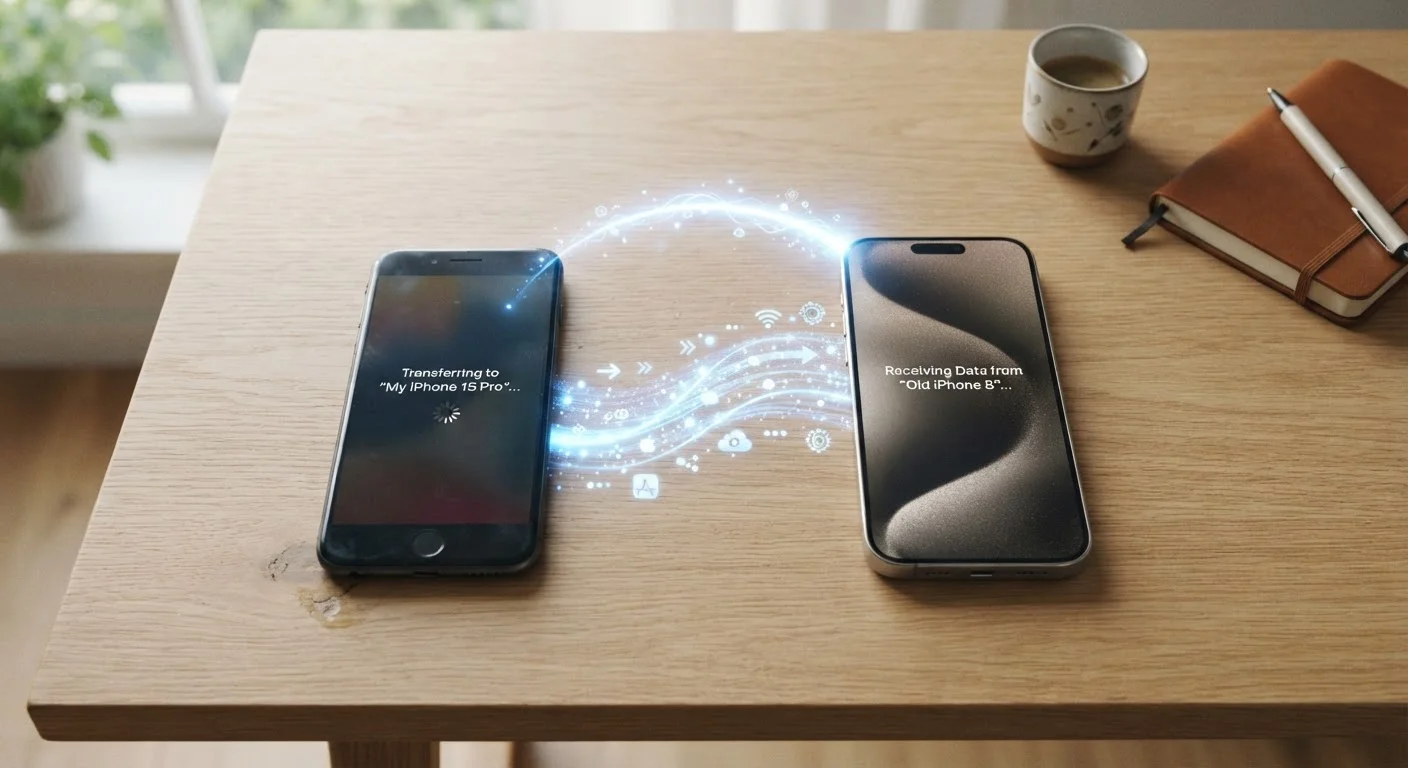
Apple's Quick Start feature - triggered automatically when you bring a new iPhone near your old one - uses a direct encrypted connection to transfer your data. You can also restore from an iCloud backup or an encrypted iTunes/Finder backup on a computer. iCloud backups are the most convenient but require sufficient iCloud storage; a computer backup is free and captures more data including Health records.
Android to iPhone (or Vice Versa)
Cross-platform moves require dedicated apps. Apple's Move to iOS app handles transfers from Android to iPhone during iPhone setup. Going from iPhone to Android, Google's Switch to Android app (iOS) can move photos, contacts, calendar events, and some messages. Neither tool transfers paid apps or app-specific data - you'll need to reinstall apps manually and log back in.
Cross-Platform Moves Need Extra Time
If you're switching between Android and iPhone, budget extra time - plan for at least an hour. You'll reinstall apps manually, re-enter login credentials, and handle account verifications one by one. Making a written list of your most-used apps beforehand makes this much faster.
Whatever your scenario, once you're set up, it's a good time to review your privacy controls. Our overview of overlooked privacy settings covers the settings most people never adjust after a fresh setup.
What Doesn't Transfer Automatically - and How to Handle It
Even a successful automated transfer leaves some gaps. Here's what to watch for:
- Two-factor authentication (2FA) apps: Apps like Google Authenticator or Authy store codes locally. Before switching, either export the codes within the app (Authy supports this) or set up 2FA on your new device using your account's backup codes. Skipping this can lock you out of accounts.
- App-specific data: Game progress, in-app settings, and locally stored content often don't move, even if the app itself reinstalls. Check whether the app syncs to a cloud account - many do, and logging back in restores everything.
- Text messages (cross-platform): SMS history is difficult to move between Android and iPhone without third-party tools. Most people choose to accept the clean break.
- Banking and financial apps: These apps frequently lock to a specific device for security. Plan to re-authenticate with each one individually after the transfer.
If you picked up a used device and want to know how to verify it's genuinely ready to receive your data, our checklist for inspecting used smartphones covers the key things to confirm beforehand.
Don't Wipe Your Old Phone Too Soon
It's tempting to factory-reset your old phone the moment the new one looks ready. Resist the urge. Some data - particularly from apps with local storage - may appear to transfer but actually be incomplete or corrupted. Use the new device as your primary phone for at least a day before permanently erasing the old one.
The content on this site is provided for informational purposes only and should not be considered a substitute for professional advice. While we strive to provide accurate and up-to-date information, we make no guarantees regarding its completeness or accuracy. Always consult a qualified professional for advice specific to your circumstances before making any decisions.