

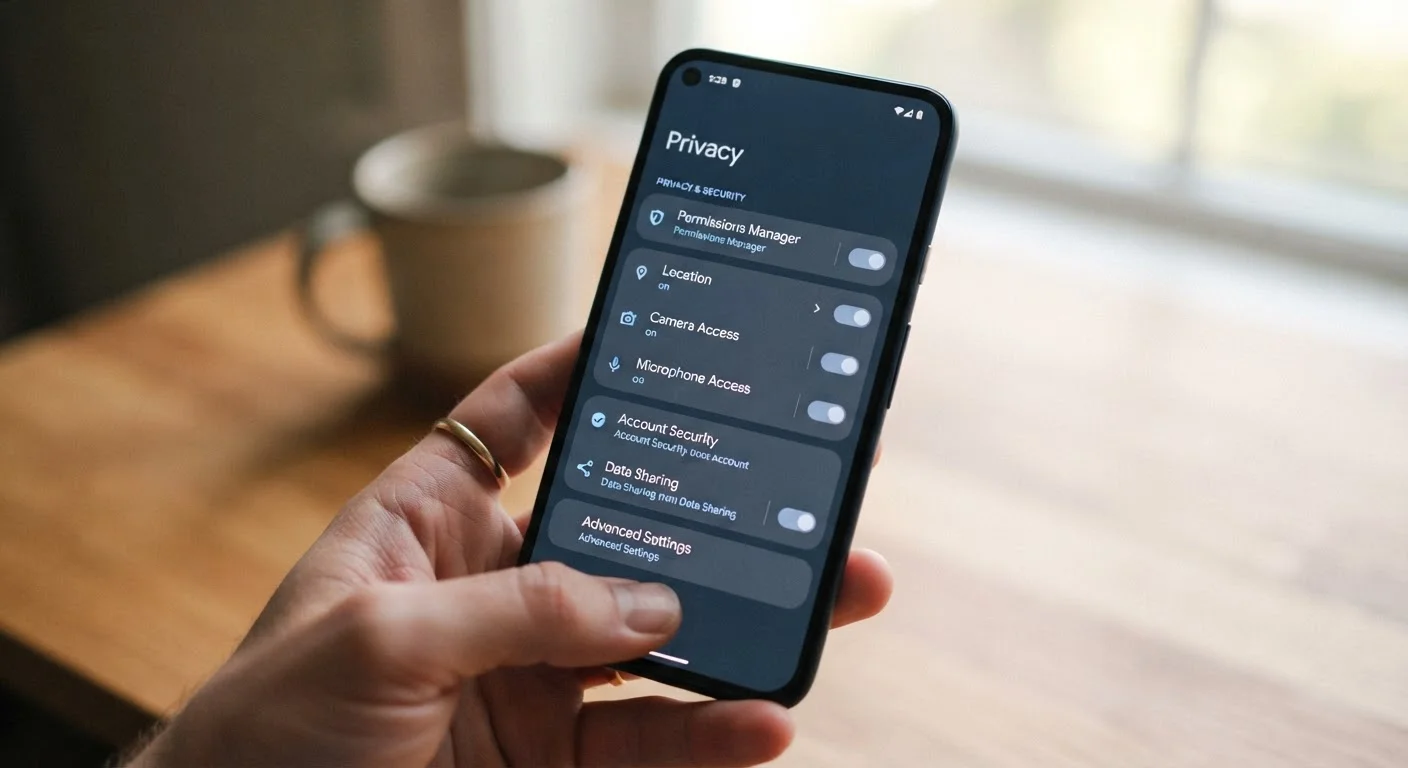
Why Default Settings Aren't Designed With Your Privacy in Mind
When you take a new phone out of the box, it's configured for maximum convenience - not maximum privacy. App permissions are granted broadly, location services run in the background, and advertising identifiers are active by default. Most people tap through setup screens quickly and never revisit those choices.
That gap between what you've agreed to and what you actually want is where a lot of unnecessary data collection happens. The good news: your phone already has tools to close it. You don't need a third-party app or technical knowledge - just a few minutes in settings you've probably never opened. If you're also thinking about how Android and iOS approach privacy differently at a system level, the side-by-side comparison of Android and iOS lays that out clearly.
Location Services Running for Apps That Don't Need Them
Both Android and iOS let you set location access per app: always on, only while using the app, or never. Many apps request "always on" access even when their core function doesn't require it. A shopping app, for instance, rarely needs to know where you are when it's closed.
Go to Settings > Privacy > Location Services (iOS) or Settings > Location > App permissions (Android) and switch any non-essential app from "Always" to "While Using" or "Never." This single step can meaningfully reduce background data collection.
Switching apps from "Always" to "While Using" is one of the fastest privacy wins available.
Ad Tracking Identifiers Left Enabled
Every smartphone carries an advertising identifier - called IDFA on iPhone and GAID on Android - that allows apps and ad networks to link your behavior across different apps and build a profile of your interests. By default, this identifier is active and available.
On iPhone, go to Settings > Privacy & Security > Tracking and turn off "Allow Apps to Request to Track." On Android, look under Settings > Privacy > Ads and select "Delete advertising ID" or opt out of ads personalization, depending on your Android version. This won't eliminate ads, but it breaks the cross-app tracking chain.
Resetting or deleting your ad ID limits cross-app behavioral profiling without breaking anything.
Microphone and Camera Access Granted Too Broadly
Apps routinely request microphone and camera access, and users often approve without much thought. Once granted, that permission persists indefinitely unless you revoke it manually. A game or utility app that once asked for mic access to record a video clip still has it months later.
Review these under Settings > Privacy > Microphone and Camera on iPhone, or Settings > Apps > [App name] > Permissions on Android. Revoke access from any app that has no clear, ongoing reason to use your camera or mic.
Microphone and camera permissions don't expire - manually reviewing them periodically is essential.
Diagnostics and Usage Data Sharing Turned On
Phones offer to send diagnostic and usage data back to the manufacturer or operating system provider. While this data is generally described as anonymized, it can include details about which apps you use, how often, and how your device behaves. Most users leave this enabled simply because they clicked through the setup screen without reading it.
On iPhone: Settings > Privacy & Security > Analytics & Improvements - you can disable sharing with Apple and with app developers independently. On Android, look under Settings > Google > Manage your Google account > Data & privacy or your manufacturer's own settings menu for similar controls.
Diagnostic sharing is on by default and rarely revisited - a quick toggle limits what gets sent.
Personalized Suggestions Drawing From Sensitive Data
Both platforms offer "personalized" features - Siri Suggestions, Google Discover, app recommendations - that learn from your usage patterns, contacts, search history, and sometimes health data. These features can feel convenient, but they require ongoing analysis of fairly personal information.
On iPhone, Settings > Siri & Search lets you turn off suggestions per app or globally. On Android, Google's personalization settings sit within your Google account under Data & privacy > Web & App Activity. Pausing activity collection here limits what feeds those suggestions.
Pausing web and app activity collection reduces personalization data without disabling search itself.
Lock Screen Notifications Revealing Private Information
By default, many phones display full notification content on the lock screen - meaning anyone who picks up your phone can read your messages, email previews, or banking alerts without unlocking it. This is less about app data collection and more about physical exposure of private information.
On iPhone, go to Settings > Notifications > Show Previews and set it to "When Unlocked" or "Never." Android users can find this under Settings > Notifications > Lock screen and choose to hide sensitive notification content. The adjustment is minor but the privacy benefit in everyday situations is immediate.
Hiding notification previews on the lock screen protects private information from casual physical exposure.
Taking Stock of What You've Already Shared
After working through these settings, it's worth doing a one-time audit of the apps already on your phone. Go to your main privacy or permissions menu and look for any app that has access to your microphone, camera, contacts, or location that you don't recognize or no longer use. Revoke anything that feels unnecessary - you can always re-grant access if an app breaks.
Privacy settings aren't a one-time fix. Apps update, new permissions get requested, and habits change. A quick review every few months keeps things in check without requiring constant vigilance. For a broader look at how connected devices in your home handle data, see what data smart home gadgets actually collect - many of the same principles apply.
Set a Privacy Check Reminder
Consider adding a recurring reminder - quarterly works for most people - to revisit app permissions and privacy settings. Platforms update their privacy menus fairly often, and new settings or app permission requests can appear after system updates. A brief review every few months is more manageable than trying to monitor changes in real time.
The content on this site is provided for informational purposes only and should not be considered a substitute for professional advice. While we strive to provide accurate and up-to-date information, we make no guarantees regarding its completeness or accuracy. Always consult a qualified professional for advice specific to your circumstances before making any decisions.