

Our Verdict
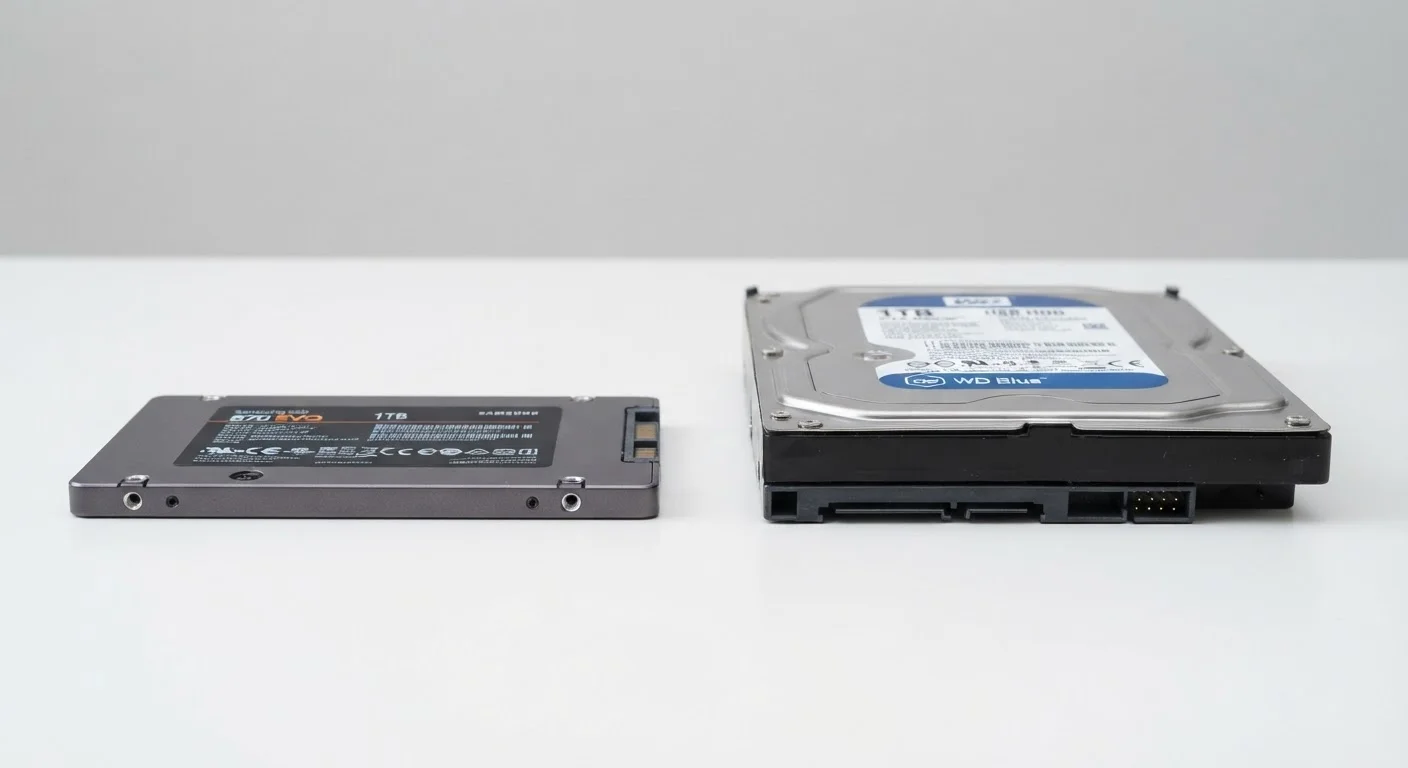
SSDs deliver a noticeably faster, more durable experience for everyday computing - especially in laptops. HDDs remain relevant where raw storage capacity and cost efficiency matter more than speed. For most people buying a new computer today, an SSD is the more practical choice, though HDDs still earn their place as secondary or archival storage.
| Best for | Recommended |
|---|---|
| Everyday laptop users who want fast startup and responsiveness | SSD |
| Those who need large amounts of storage on a tight budget | HDD |
| Storing large media archives or backups | HDD |
| Anyone prioritizing durability and portability | SSD |
How Each Type of Drive Actually Works
A hard disk drive (HDD) stores data on spinning magnetic platters. A mechanical arm reads and writes information as those platters rotate - typically thousands of times per minute. It's a technology that dates back decades and is still widely used today.
A solid-state drive (SSD) contains no moving parts. Instead, it stores data on flash memory chips - the same general technology found in USB drives and smartphone storage. Because there's nothing physically moving, it can retrieve data almost instantly.
This difference in how they work is the root cause of nearly every practical difference you'll notice between them. For a broader look at how storage fits into your computer's overall specs, see what those specs actually mean.
| SSD | HDD | |
|---|---|---|
| Speed | Very fast - near-instant file access | Slower - limited by spinning platters |
| Durability | Resistant to drops and shock | Vulnerable to physical impact |
| Storage cost | Higher cost per gigabyte | Lower cost per gigabyte |
| Noise | Silent - no moving parts | Audible hum or clicking during use |
| Energy use | Lower power draw | Higher power draw |
| Common use case | Laptops, primary system drives | Desktops, external and backup drives |
Speed: Where the Gap Is Most Noticeable
The speed difference between an SSD and an HDD is dramatic - and it's one of the first things users notice. A computer with an SSD can typically boot up in under 15 seconds; an HDD-equipped machine may take a minute or more under similar conditions. Opening large files, launching apps, and switching between tasks all feel faster on an SSD.
For everyday use - browsing the web, streaming video, writing documents - this matters. Waiting is friction, and reduced friction changes how a computer feels to use day to day.
10×
Typical SSD speed advantage over HDD
Sequential read speeds on consumer SSDs commonly reach 500-3,500 MB/s versus 80-160 MB/s for mechanical hard drives.
~10s
Average SSD boot time vs. ~60s for HDD
Boot times vary by system, but SSDs consistently deliver significantly faster startups than comparable HDD-equipped machines.
Durability, Portability, and Physical Risk
Because an HDD relies on spinning platters and a moving arm, physical shock is a real risk. Drop a laptop with an HDD mid-operation and you may damage the drive. SSDs have no such vulnerability - with no moving parts, they handle bumps and drops far better.
This matters most for laptop users. If you carry a computer in a bag, use it in varied environments, or have younger household members sharing the device, an SSD provides a meaningful layer of protection that an HDD simply cannot.
If you're weighing this as part of a broader laptop-versus-desktop decision, thinking through the right fit for your life covers portability trade-offs in more detail.
Storage Capacity and Cost
HDDs still offer a cost-per-gigabyte advantage. You can purchase a 2TB or 4TB hard drive for significantly less than the equivalent SSD capacity. This is why HDDs remain common in desktop towers, external backup drives, and network-attached storage devices where raw capacity matters more than speed.
SSD prices have dropped considerably over the past several years, but the gap hasn't fully closed at the high-capacity end. If you're storing large collections of photos, video footage, or media files and cost is a constraint, an HDD - particularly as a secondary drive - still makes practical sense.
Storage needs on mobile devices follow a similar logic. If you're curious how capacity decisions play out on phones and tablets, understanding mobile storage walks through that side of the equation.
Consider a Two-Drive Setup for Desktops
If you're building or upgrading a desktop computer, pairing a smaller SSD for your operating system and apps with a larger HDD for file storage is a cost-effective approach. You get fast day-to-day performance where it matters most without paying SSD prices for every gigabyte of archival storage.
Which Should You Look For?
For a new laptop purchase today, an SSD is the more practical choice for most people. The speed, durability, and energy-efficiency advantages are tangible in daily use. HDDs in laptops are increasingly uncommon in newer models for good reason.
For desktops, a common approach is pairing a smaller SSD (for the operating system and frequently used applications) with a larger HDD (for files and backups). This hybrid setup balances speed where it counts with cost-efficient bulk storage.
If you're evaluating a computer and the specifications mention "eMMC" storage, that's a lower-performance flash storage variant often found in budget machines - fast compared to an HDD, but slower than a full SSD. Worth knowing before you buy.
The content on this site is provided for informational purposes only and should not be considered a substitute for professional advice. While we strive to provide accurate and up-to-date information, we make no guarantees regarding its completeness or accuracy. Always consult a qualified professional for advice specific to your circumstances before making any decisions.