

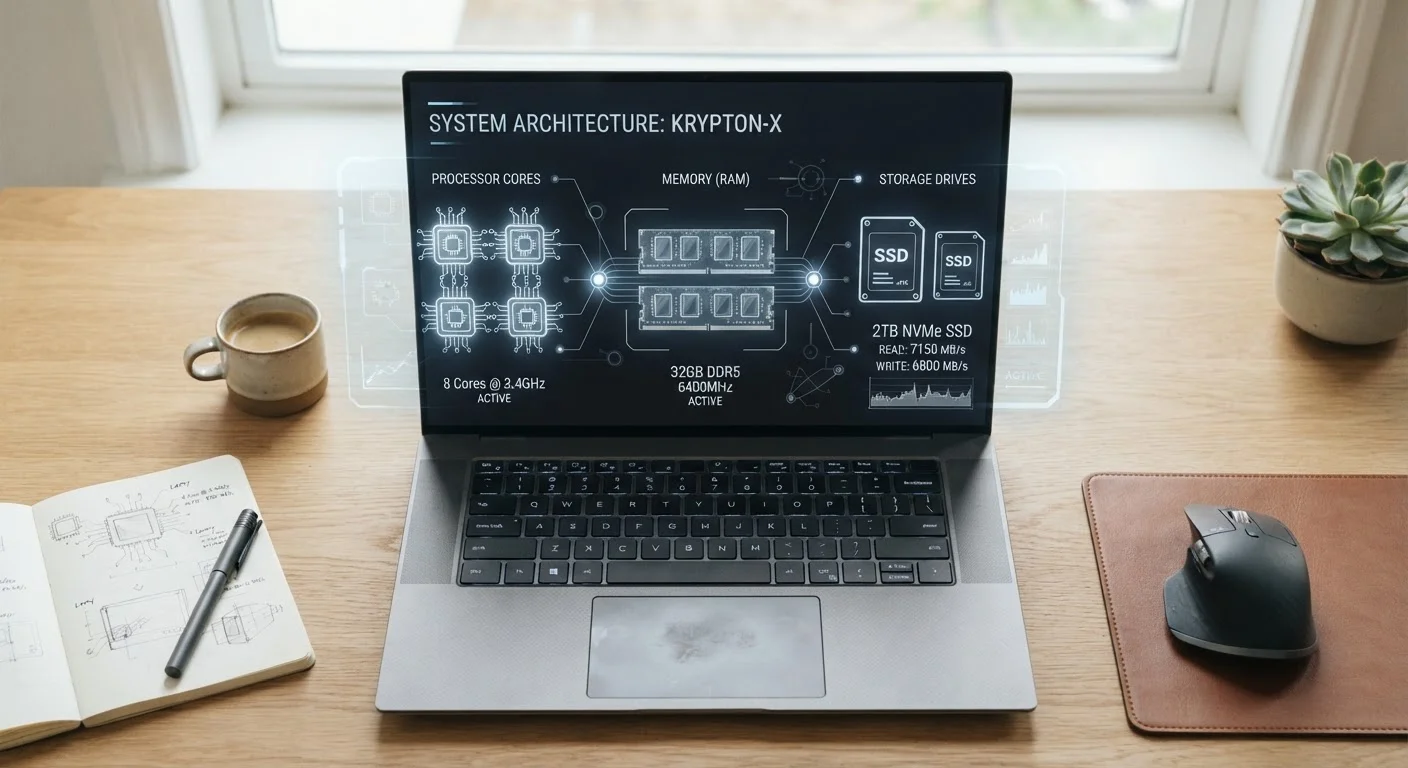
RAM: Your Computer's Short-Term Memory
RAM - short for Random Access Memory - is what your computer uses to hold everything it's actively working on right now. When you open a browser with ten tabs, pull up a spreadsheet, and play music simultaneously, all of that lives in RAM while you're using it. The moment you shut down, RAM clears completely.
More RAM means your computer can keep more things running at once without slowing to a crawl. When RAM fills up, your system starts borrowing slower storage space as a substitute - and that's when you notice lag, freezing, and sluggishness. For most everyday users, 8GB handles typical workloads comfortably. Power users who edit video or run virtual machines benefit from 16GB or more.
Don't Confuse RAM and Storage in Ads
Marketing materials sometimes list storage prominently and RAM in smaller print, which can mislead shoppers into thinking they're getting more memory than they are. Always locate both numbers separately before evaluating a device. RAM and storage are fundamentally different resources that serve completely different functions.
RAM is measured in gigabytes (GB). Don't confuse it with storage - a computer advertised with "256GB" in one spec and "8GB" in another is almost certainly listing storage first and RAM second.
Storage: Where Everything Lives Permanently
Storage is where your operating system, applications, photos, documents, and downloads reside - permanently, until you delete them. Unlike RAM, storage retains its contents when the computer powers off.
Two main storage types appear in modern computers. A hard disk drive (HDD) uses spinning magnetic platters and offers large capacity at lower cost, but reads and writes data more slowly. A solid-state drive (SSD) has no moving parts and accesses data significantly faster - which is why computers with SSDs boot up and load programs much quicker. Most new laptops now ship with SSDs as standard.
How much storage you need depends on what you do. Streaming music and movies rather than downloading them, using cloud storage for photos, and working mostly in browser-based apps all reduce how much local storage you actually need. Heavy video editors or gamers with large local libraries need considerably more.
5-10x
Speed difference: SSD vs. traditional HDD
Industry benchmarks consistently show SSDs delivering sequential read speeds several times faster than mechanical hard drives, with the gap most visible during startup and large file transfers.
8GB
RAM considered baseline for modern laptops
Technology analysts and hardware reviewers broadly treat 8GB as the practical minimum for running a current operating system alongside everyday productivity and communication apps.
256GB-512GB
Storage range typical for mid-range laptops
Most new consumer laptops ship with SSD storage in this range, which is sufficient for users who rely on cloud services and streaming rather than large local file libraries.
Processing Power: What GHz and Cores Actually Mean
The processor - or CPU - is the brain of your computer. Two numbers appear most often in processor descriptions: clock speed (measured in GHz) and core count.
Clock speed tells you how many processing cycles a chip can complete per second. A 3.5 GHz processor completes 3.5 billion cycles per second. Higher GHz can mean faster single-task performance, but this comparison only holds meaningfully between chips of the same generation and design family. A newer chip at 2.8 GHz can outperform an older one at 3.5 GHz because processor architecture improvements matter enormously.
Core count refers to how many independent processing units a chip contains. More cores help when running multiple demanding tasks simultaneously or using software specifically built to split work across cores - like video rendering. For browsing the web, writing documents, or video calls, core count matters far less than you might expect.
For a deeper look at how processor naming conventions translate to real-world performance, see what processor names are actually telling you. And if you're also evaluating a phone's chip, processor speed works differently on mobile devices.
Match Specs to Your Actual Workload
Before comparing spec sheets, list the two or three things you do most on a computer. Web browsing, streaming, and documents require far less processing power than video editing or gaming. Knowing your real use case prevents you from overpaying for specs that won't change your day-to-day experience.
How These Specs Work Together - and Where Misconceptions Creep In
Specs don't operate in isolation. A computer with a fast processor but too little RAM will still struggle under a heavy workload because it can't hold enough active data. Generous storage capacity won't help a slow processor handle demanding software. Each component feeds the others.
One common trap is chasing a single impressive-looking number while ignoring weaker areas. A high core count doesn't compensate for 4GB of RAM when running a modern browser with multiple tabs open. Similarly, an enormous storage drive doesn't make a computer feel faster day to day - but switching from an HDD to an SSD often produces the single most noticeable speed improvement an everyday user can experience.
For a broader look at common misconceptions that shape how people shop and troubleshoot, PC myths worth rethinking walks through widely held beliefs that don't hold up under scrutiny. Understanding how these three specs interact is the foundation for making confident, practical decisions - without overpaying for power you won't use or undershooting in areas that will frustrate you daily.
Frequently Asked Questions
For typical tasks like web browsing, email, and streaming, 8GB of RAM is usually sufficient. If you regularly use video editing software, run many browser tabs, or multitask heavily, 16GB offers noticeably more headroom. Going higher is generally only necessary for specialized professional work.
RAM is your computer's short-term working memory - it holds whatever you're actively using right now but clears when you shut down. Storage is long-term: it keeps your files, apps, and operating system permanently. Think of RAM as your desk surface and storage as your filing cabinet.
Not necessarily. Clock speed (GHz) measures how many operations a processor can complete per second, but core count, architecture, and how efficiently software uses those cores matter just as much. Two processors at the same GHz can perform very differently depending on their design generation.
Yes, meaningfully so. Solid-state drives (SSDs) can load programs and files several times faster than traditional spinning hard drives (HDDs). The difference is most noticeable at startup and when opening large applications. SSDs are now standard in most new laptops and desktops.
It depends on the specific model. Many modern ultra-thin laptops have RAM soldered directly to the motherboard and cannot be upgraded. Storage upgrades are more commonly possible but still vary by design. Check your device's specifications before purchase if upgradability matters to you.
For video conferencing and productivity apps, 8-16GB of RAM and a reasonably current processor generation matter more than raw clock speed. A stable internet connection and a functioning camera are often bigger variables than processing power for remote work performance.
The content on this site is provided for informational purposes only and should not be considered a substitute for professional advice. While we strive to provide accurate and up-to-date information, we make no guarantees regarding its completeness or accuracy. Always consult a qualified professional for advice specific to your circumstances before making any decisions.