

Our Verdict
Each laptop category is genuinely strong - just for different people. Chromebooks excel for web-centric, budget-conscious users. Windows laptops offer the broadest flexibility in hardware and software. MacBooks deliver a polished, cohesive experience for those already in the Apple ecosystem. No single category wins outright; the right pick depends on what you actually do day to day.
| Best for | Recommended |
|---|---|
| Students, light users, and those on a tighter budget | Chromebook |
| Users who need specific Windows software or maximum hardware choice | Windows Laptop |
| Those already using Apple devices who want seamless integration | MacBook |
| Power users who need specialized or legacy software | Windows Laptop |
Three Categories, Three Philosophies
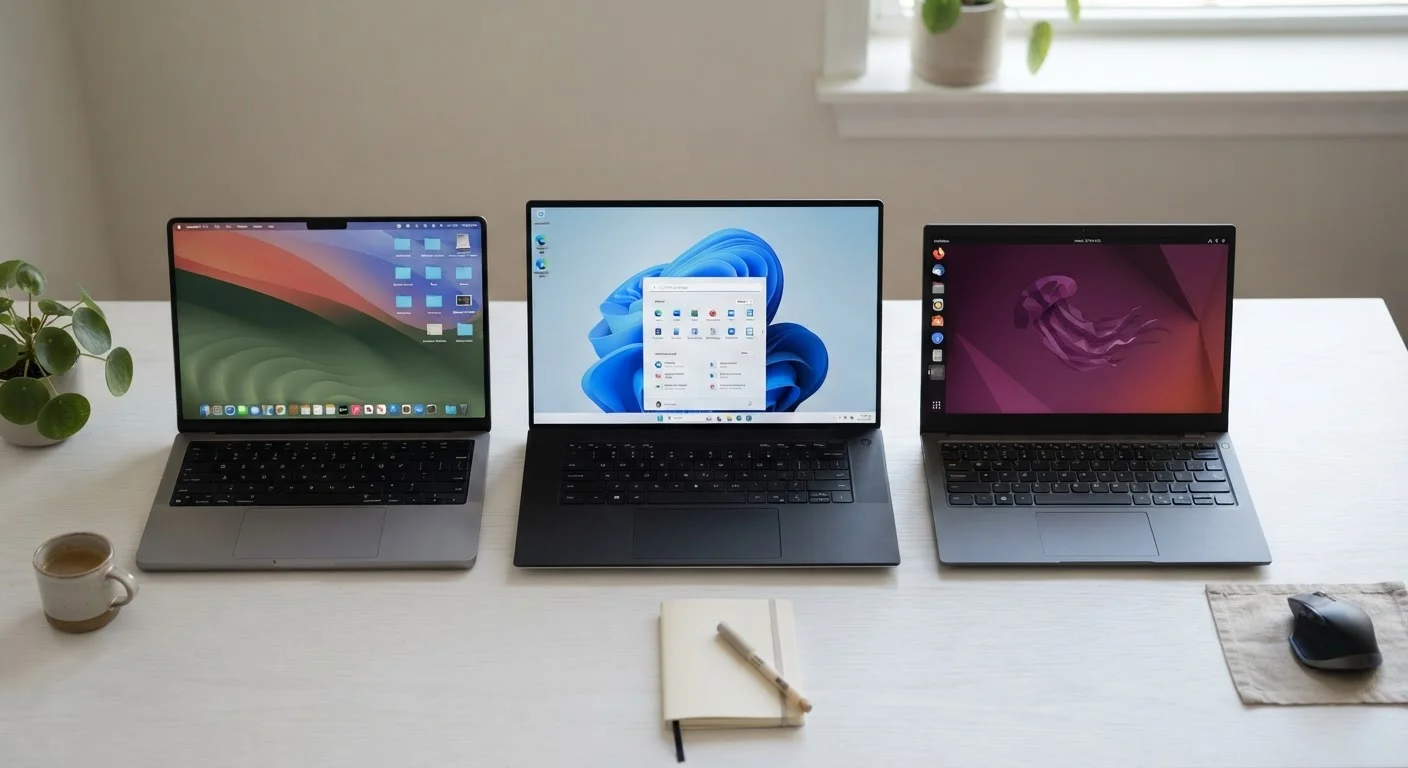
When you're shopping for a laptop, you're not just choosing a screen size or a processor - you're choosing an entire computing philosophy. Chromebooks, Windows laptops, and MacBooks each represent a different answer to the question: what is a laptop for?
Understanding those underlying differences is far more useful than comparing spec sheets. A Chromebook with modest specs may outperform an expensive Windows laptop for someone whose entire workday lives in a browser. Conversely, a creative professional who relies on industry-specific software may find a Chromebook practically unusable, regardless of price.
If you're also weighing whether a laptop is the right device at all, our guide on tablet vs. laptop trade-offs can help you think through that first.
| Chromebook | Windows Laptop | MacBook | |
|---|---|---|---|
| Operating System | ChromeOS | Windows | macOS |
| Hardware Makers | Multiple brands | Many brands | Apple only |
| Software Library | Web & Android apps | Widest desktop app support | Broad, fewer niche tools |
| Offline Capability | Limited but improving | Full offline use | Full offline use |
| Price Range | Generally lower | Wide range | Higher starting price |
| Best Ecosystem Fit | Google services users | Mixed or Windows workplaces | iPhone/iPad owners |
| Maintenance & Updates | Mostly automatic | User-managed | Mostly automatic |
Chromebooks: Built for the Web
Chromebooks run ChromeOS, Google's operating system, which is designed around the Chrome browser and web-based applications. Most of what you do on a Chromebook - documents, email, video calls, streaming - happens through the browser or Android apps available through the Google Play Store.
This focus has real advantages. Chromebooks tend to boot quickly, require minimal maintenance, receive automatic software updates quietly in the background, and are generally straightforward to use. Because there's less to manage, they're a popular choice for schools and for users who don't want to think about antivirus software or system upkeep.
The limitation is equally direct: if your workflow requires locally installed desktop software - industry tools, specialized creative applications, or older legacy programs - ChromeOS cannot run them. Offline capability has improved considerably over the years, but a Chromebook still performs best with a reliable internet connection.
Check Android App Compatibility
Many Chromebooks support Android apps from the Google Play Store, which meaningfully extends what you can do offline and beyond the browser. However, not every Android app is optimized for a laptop screen or keyboard-and-trackpad input. Before relying on a specific app, test it on a Chromebook if possible or look up user reviews specific to ChromeOS.
Windows Laptops: The Broad Middle Ground
Windows laptops run Microsoft Windows and are sold by dozens of hardware manufacturers in an enormous range of configurations - from entry-level machines to high-end workstations. That variety is one of Windows' defining traits: you can find a Windows laptop at almost any price point, with almost any combination of features, from touchscreens and convertible hinges to discrete graphics cards for gaming or video editing.
Windows also offers the widest software compatibility. The vast majority of business, productivity, creative, and gaming software is written for Windows. If you rely on a specific program for work or school, there's a strong chance it runs on Windows.
The trade-off is that the Windows experience can vary considerably depending on the hardware manufacturer. Build quality, display calibration, and pre-installed software differ from one brand to the next. To explore how the operating system itself stacks up against macOS in everyday use, see our comparison of Windows and macOS differences.
MacBooks: Tight Integration, One Ecosystem
MacBooks run macOS, Apple's operating system, and are exclusively made by Apple. That control over both hardware and software is the foundation of what makes MacBooks distinctive: the experience is consistent, the hardware and OS are optimized together, and the build quality is uniform across the lineup.
For users who already own an iPhone or iPad, MacBooks integrate tightly with those devices - shared clipboard, Handoff features, iMessage on the desktop, and AirDrop. If you live inside Apple's ecosystem, a MacBook extends that experience naturally.
The constraints are real, though. MacBooks carry a higher starting price than comparable Windows alternatives. Software availability, while broad, is narrower - some Windows-only applications have no macOS equivalent, and gaming support, while improved, still lags behind the Windows ecosystem. You're also locked into Apple's hardware; there's no third-party MacBook option.
Before committing to either Windows or macOS, it's worth reviewing how the two operating systems handle everyday tasks differently. Our side-by-side look at Windows and macOS breaks that down in practical terms.
Making the Call: What Actually Matters
The most useful question to ask yourself isn't "which laptop is better?" - it's "what do I actually need to run?" Start with your software requirements. If a specific application is essential to your work or studies, check which operating systems it supports. That single filter often narrows the decision significantly.
Next, consider how much of your work is browser-based. If nearly everything you do lives in Gmail, Google Docs, Zoom, or similar web tools, a Chromebook is worth serious consideration. If you regularly work offline, or need desktop-grade applications, ChromeOS is likely too limiting.
Budget matters too, but it's easy to over-weight it. A cheaper laptop that can't run the software you need isn't a savings - it's a mismatch. Our guide to laptop shopping pitfalls covers the most common ways people end up with the wrong machine.
Finally, think about ecosystem fit. If you're already invested in Apple devices, macOS integration has tangible daily value. If your workplace runs on Windows, staying in that ecosystem reduces friction. Match the tool to your life - not the other way around.
The content on this site is provided for informational purposes only and should not be considered a substitute for professional advice. While we strive to provide accurate and up-to-date information, we make no guarantees regarding its completeness or accuracy. Always consult a qualified professional for advice specific to your circumstances before making any decisions.